

Spending and usage
nod shows what it spends on models and what it does in your apps. You can set a monthly spending limit and choose when a task checks in with you before it spends more.
nod itself doesn't charge you. Your model provider bills you for the requests nod makes with your key or plan.
See your spending
Section titled “See your spending”Open Trust in the sidebar (⌘5 in the Mac app, Ctrl+5 in the Windows or Linux app). Activity opens first.
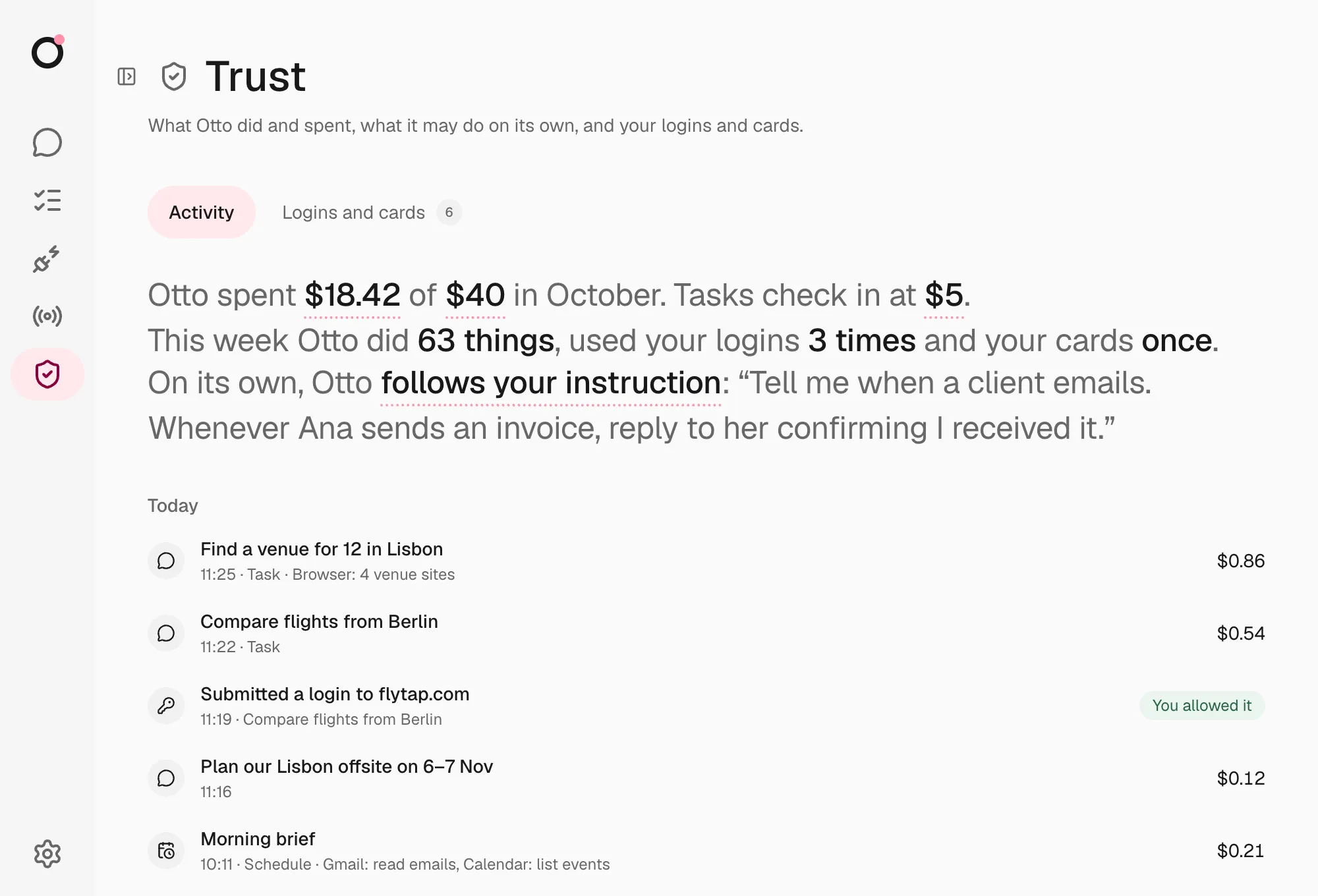
- The sentence at the top. This month's spending, your monthly limit and when a task checks in, then what nod did this week and the standing instruction it follows on its own. Select a value to see more or change it.
- The list. Every request that cost money or acted in a connected app, and every sign-in and card use, grouped by day. Each line shows where it came from, such as Schedule, Activity check or Approved action, what nod did and the cost.
Select this month's total to see a chart and a forecast, such as "On track for $12.40". Every app action is recorded, reads included.
Set a monthly limit
Section titled “Set a monthly limit”- Open Trust.
- In the sentence at the top, select no monthly limit, or your current limit.
- Enter an amount in US dollars, from $1 up, and select Save.
To remove the limit, select it, then Remove. You can also tell nod, for example "Set my monthly limit to $40". See Ask nod.
What happens at the limit
Section titled “What happens at the limit”flowchart LR
req[New request<br/>chat or background]:::accent --> check{{Spent less than<br/>the limit this month?}}
check -- yes --> run[nod works]:::go
check -- no --> stop[Stops before<br/>using the model]:::stop
stop -.-> lift[Next month, or you<br/>raise or remove the limit]:::muted
When the month's spending reaches your limit:
- New chat messages, schedules and background work stop before nod calls the model. Chat shows that it's paused.
- Work that's already running can finish.
- An action you already approved still runs once.
The pause lifts at the start of next month, or as soon as you raise or remove the limit.
Task check-ins
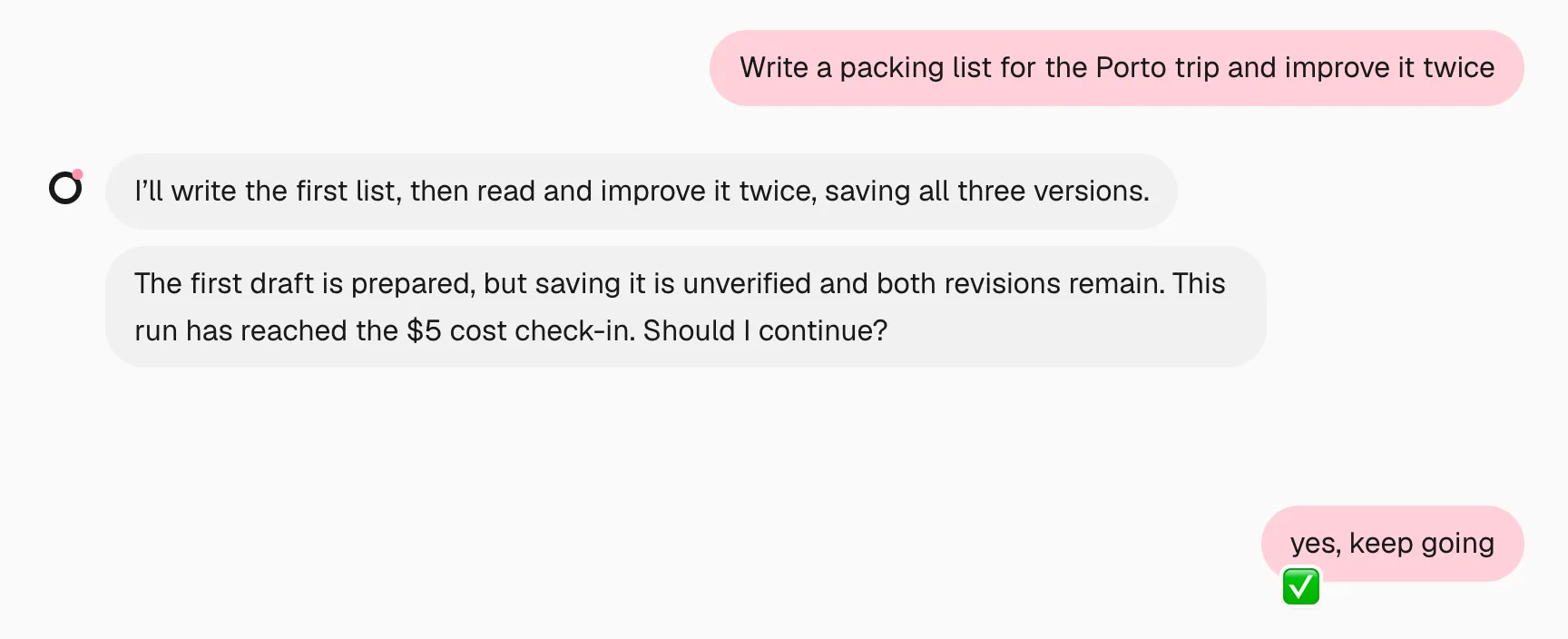
Section titled “Task check-ins”A task checks in with you when its spending since your last message to it passes the check-in amount, $5 by default. nod stops before its next step, says what's done and what's left, and asks whether to keep going.
- Say yes, and the task continues until it spends that amount again.
- Say no, and nod stops the task.
The count covers every turn of the task and its helpers, so a task that works in small steps over several days checks in too. A chat reply, a schedule and an event check in the same way. A schedule or event counts from when it started.
Trust checks, confirmation fact checks and the decision check count toward the monthly limit. Those made during a running task, and its other model calls, also count toward its check-in. The approval-reply check runs before the task resumes. Each request counts once.
Usage on a ChatGPT plan counts at the model's API price here, so plan tasks check in too, even though that usage costs you nothing extra.
Change when tasks check in
Section titled “Change when tasks check in”- Open Trust.
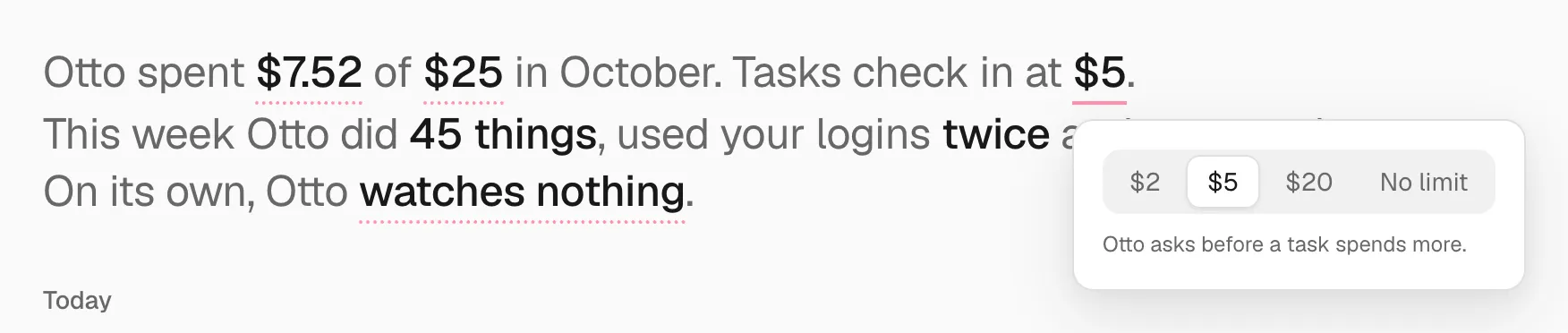
- In the sentence at the top, select the amount after Tasks check in at.
- Choose $2, $5, $20 or No limit.
Or tell nod, for example "Check in when a task passes $20".
Check usage from Telegram or WhatsApp
Section titled “Check usage from Telegram or WhatsApp”Send /usage for the same summary. It doesn't use the model or cost anything. Telegram also receives this month's statement as a PDF.
Ask nod
Section titled “Ask nod”You can ask nod about its own spending and app actions, for example "How much have you spent this month?" nod reads the same view.
You can also tell nod to change a limit, for example "Raise my monthly limit to $40" or "Stop checking in on tasks". The same check that guards app actions decides: nod changes a limit when your own words ask for it, and asks you first otherwise. A web page or email can't change your limits.